Ver.26.1.11
Component versions ▾
A redesigned login page and home page
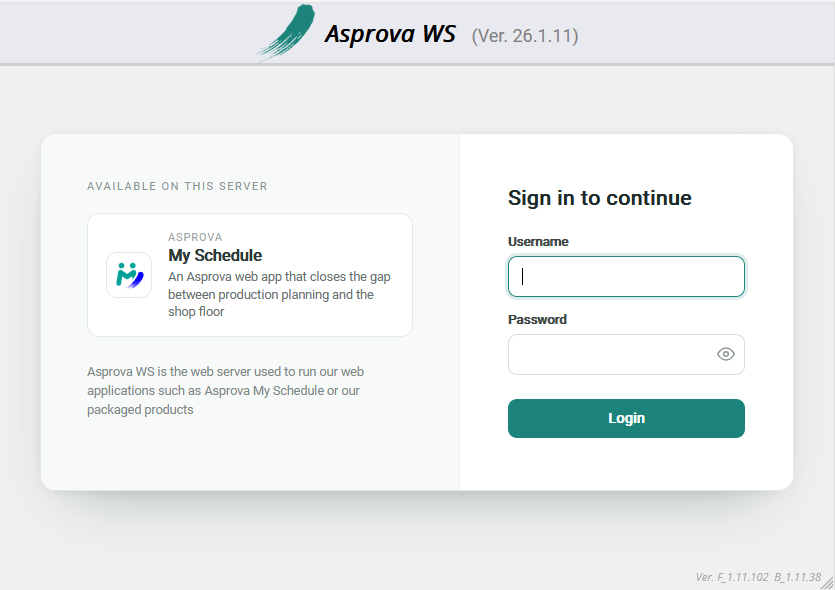
The login page has been redesigned. It now shows the neutral "Asprova WS" branding — the server that hosts My Schedule — instead of "Asprova My Schedule", next to a panel listing the products this server provides. For now, My Schedule is the only product that can appear there.
The home page's design has also changed in places.
Improvements and Bug Fixes
- (Feature) The table area of Resource Gantt and Order Gantt charts now follows the text color set in Asprova. The Resource left-side text color expression and Order left-side text color expression style settings are reflected, alongside the left-side text and background color expressions already supported. This requires Asprova 18.1.0.96 or later; on earlier versions the text keeps its previous color.
- (Improvement) My Schedule project pages now open under a
/my-schedule/address, for example/my-schedule/projects/.... Existing/projects/...links and bookmarks redirect there automatically, so saved links keep working. - (Improvement) The browser tab title and icon now follow the page you are viewing. Pages of a project that has My Schedule assigned show "Asprova My Schedule" with the My Schedule logo, and the home page shows the neutral "Asprova WS" branding.
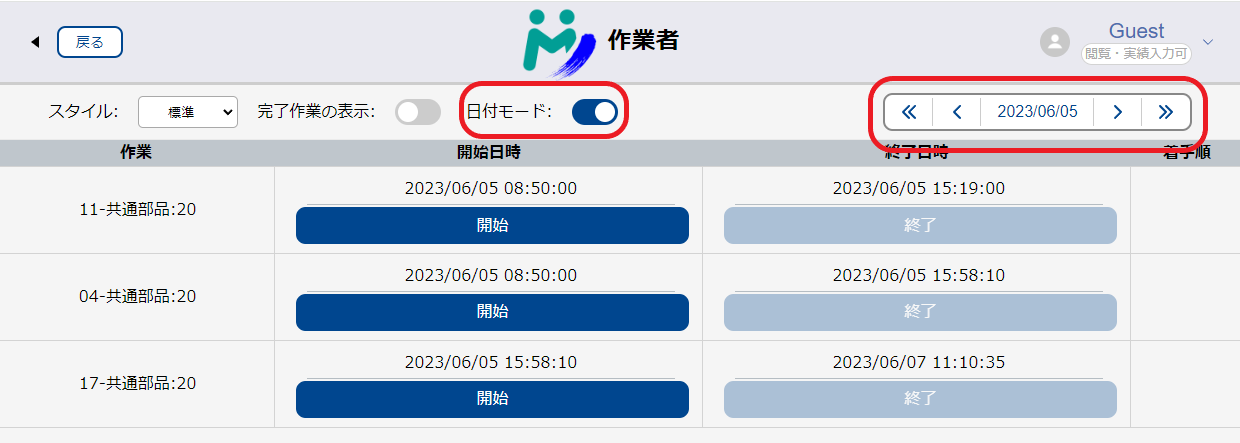
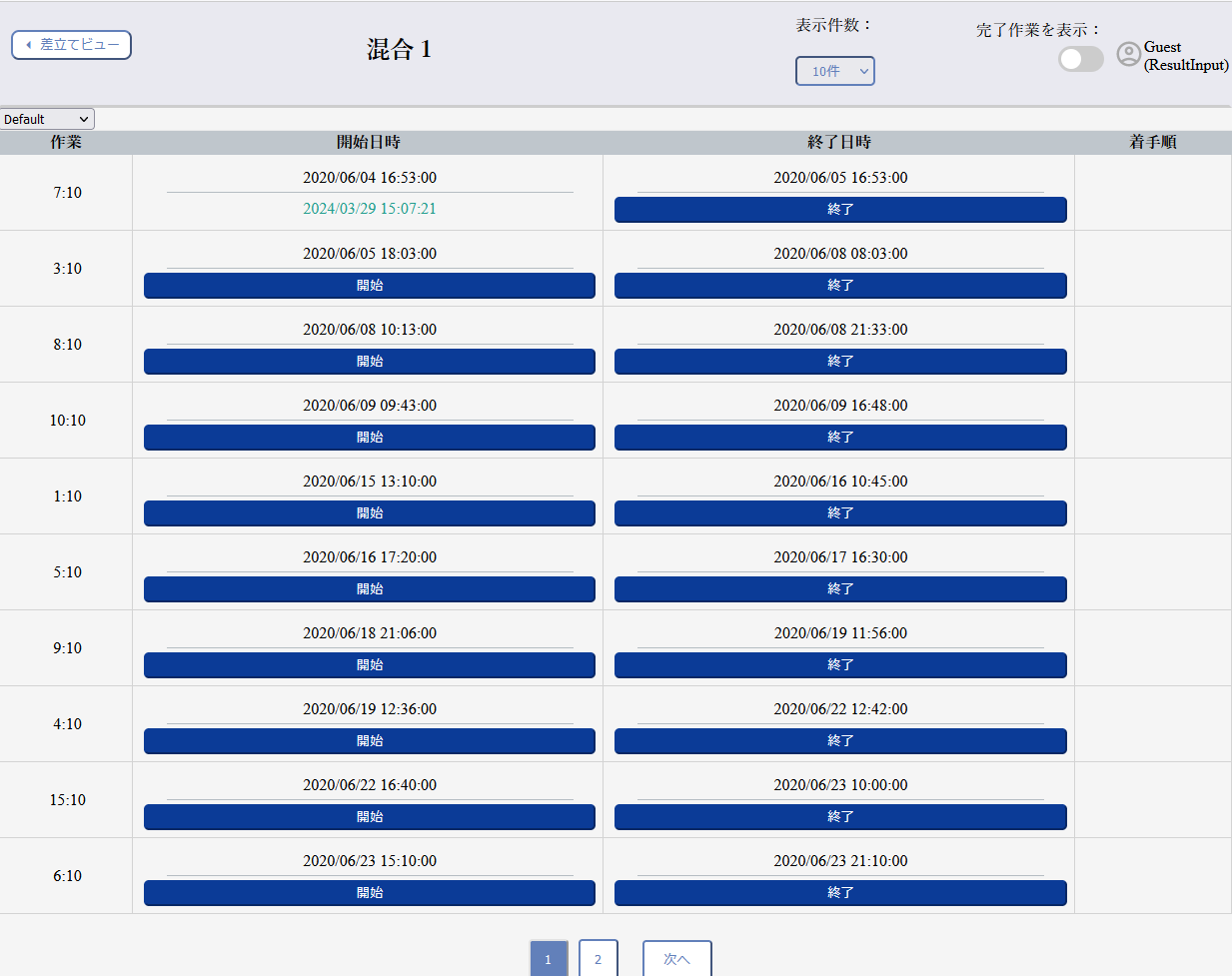
- (Fix) On the Operation Table, pressing a Start or End button no longer leaves two result date-times in the cell. (from v.26.1.10)
- (Fix) On Resource Gantt charts, the calendar header no longer disappears after switching to another view and back.
- (Fix) Project pages now enforce access control. The project admin page requires Project Admin permission, and every other project page requires you to be assigned to the project; previously any signed-in user could open them. Users without sufficient permission now see a clear "insufficient permission" message.
- (Improvement) The project settings page now shows a user's display name, with the username in parentheses, in the project users list and in the invitation dialogs. User search in the invitation dialog now matches the display name as well.
- (Fix) When the license's project count refuses a project write, the message now names the limit that was reached.
- (Fix) When the server could not be reached — while changing a project's settings, for example — this is now reported.
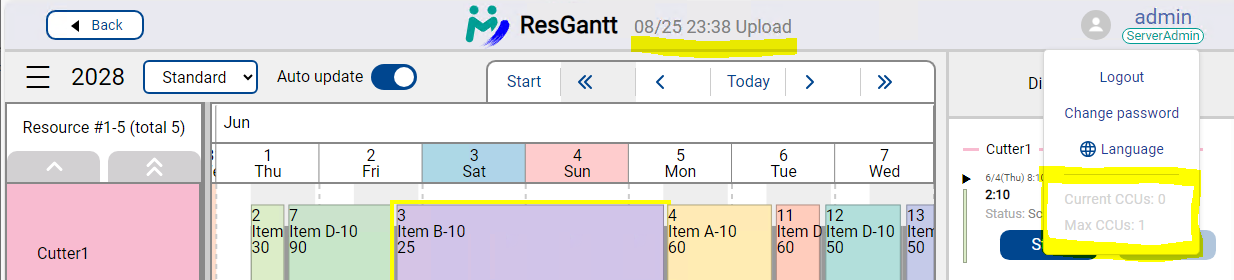
- (Fix) The concurrent user (CCU) count is now kept per session rather than per browser cookie, so signing out reliably frees the slot the user held. Previously a client that arrived without the cookie and issued several requests at once could take one slot per request, and signing out released only one of them — the rest stayed occupied until they timed out 15 minutes later.
- (Feature) Removing a user now also frees the concurrent user slots their sessions were holding, instead of leaving them occupied for 15 minutes with nobody left who could sign out to release them.
- (Improvement) When signing in with an Asprova ID to use an online license, the error message now explains the actual cause — a wrong Asprova ID or password, no internet connection, a rejected corporate or proxy certificate, a proxy problem, or a server error — instead of a generic "Failed to login". The underlying technical code is included.
- (Improvement) The server's own outbound HTTPS now trusts the certificates installed in the machine's Windows certificate store. Where a corporate CA or a TLS-inspecting proxy is in use, online license authentication succeeds as long as that certificate is installed there — no configuration is needed. See Trusting a corporate CA certificate.
- (Improvement) A new
extra_ca_certsconfiguration option takes the path to a PEM file, for a CA certificate that cannot be installed in the Windows certificate store. Its certificates are trusted in addition to that store, not instead of it. - (Improvement) On the server settings page, the alert shown for an e-Protector that cannot be used now appears in the display language.
- (Fix) Maintenance mode is now re-evaluated when a project is created or deleted, not only when a project's plan changes. Previously, deleting the project that pushed the server past its license limit did not lift maintenance mode until the next license re-verification or a server restart.
- (Improvement) The frontend and the bundled documentation are now served with
Cache-Control: no-cache, so a browser revalidates them on every page load. Previously a returning browser could keep loading a cached page for days after the server had been updated. - (Security) The application is now hardened against HTML injection in text that comes from project data or configuration, such as a project name. Such text is always shown literally.
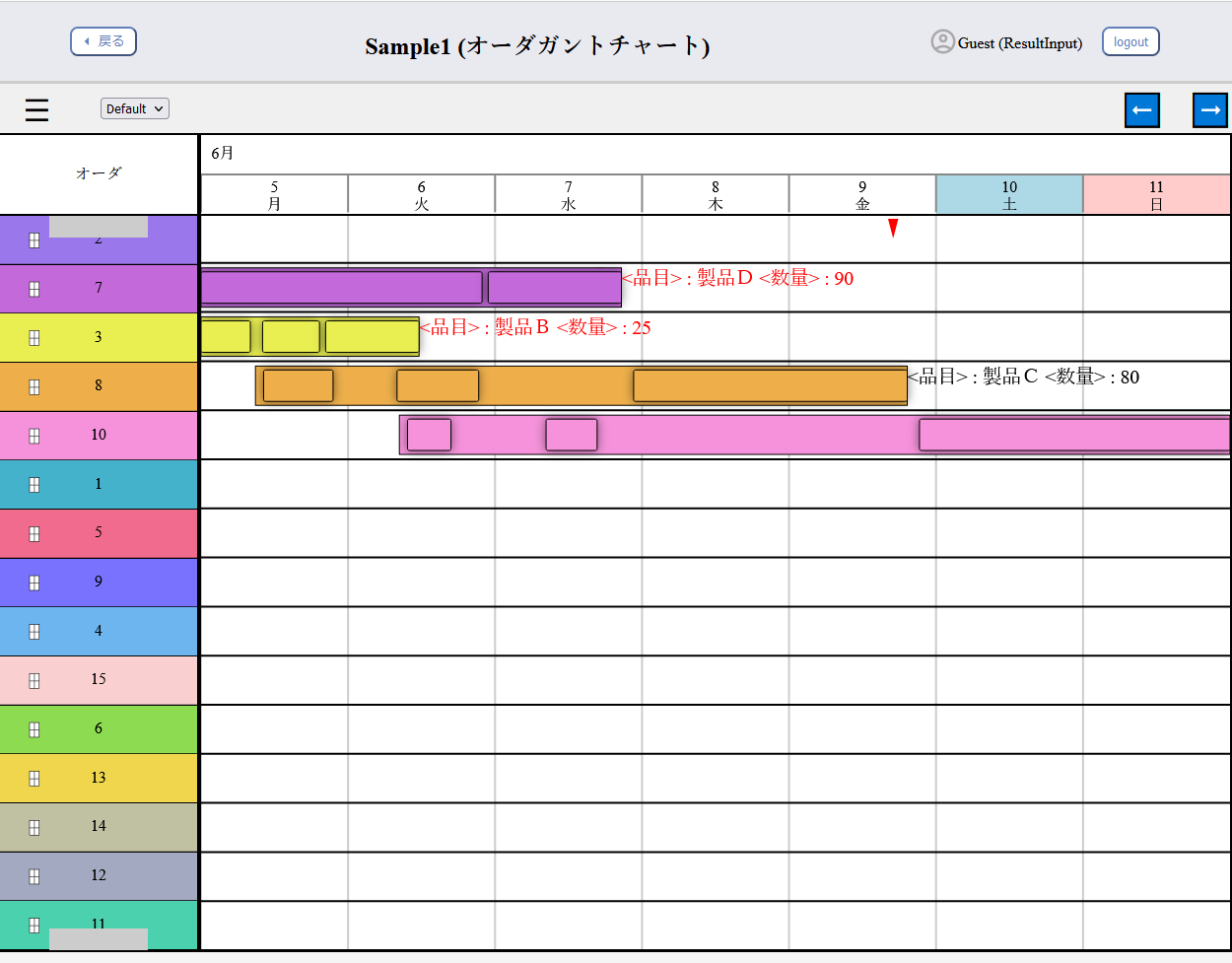
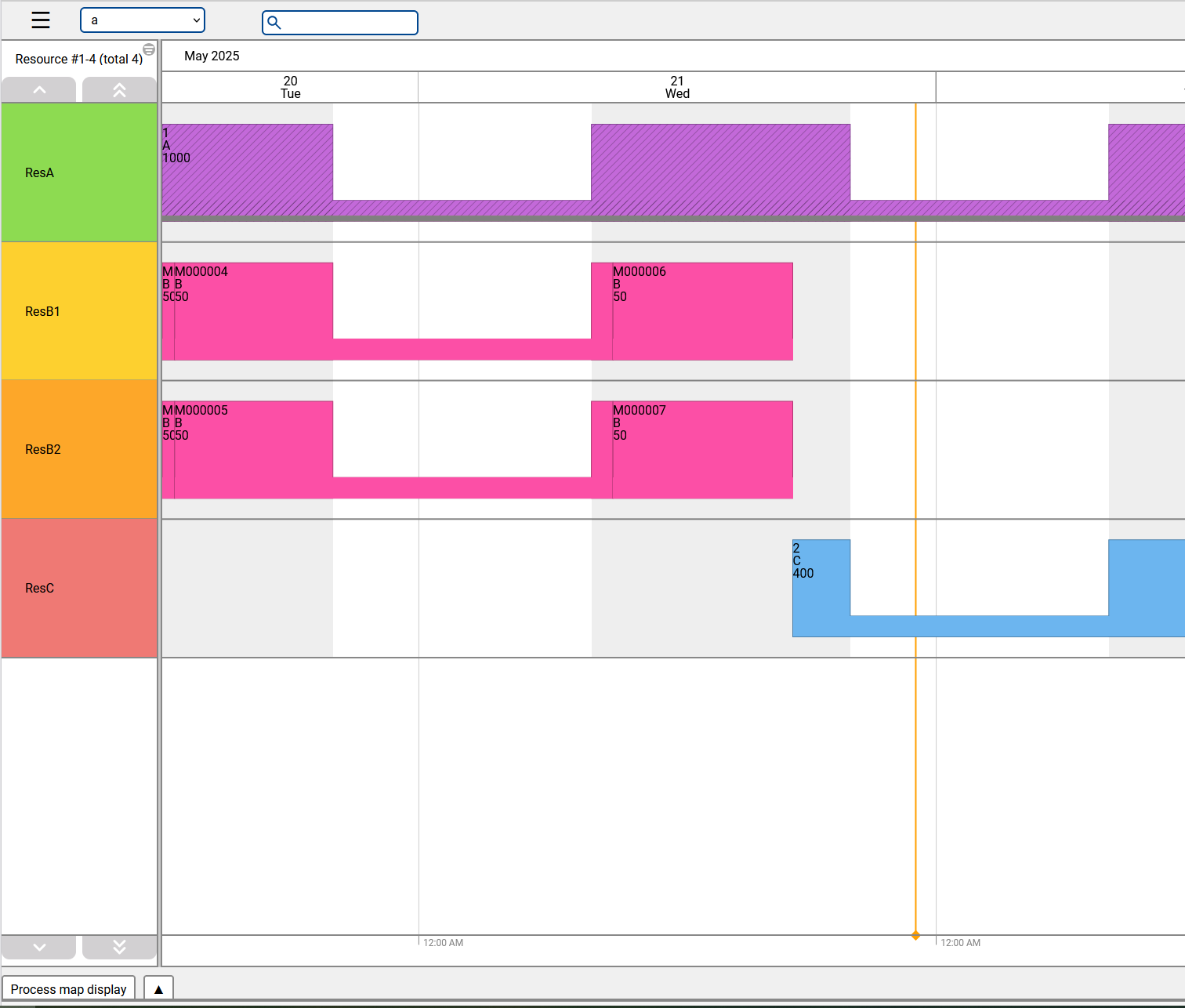 The current time is displayed on Gantt Charts with an orange line.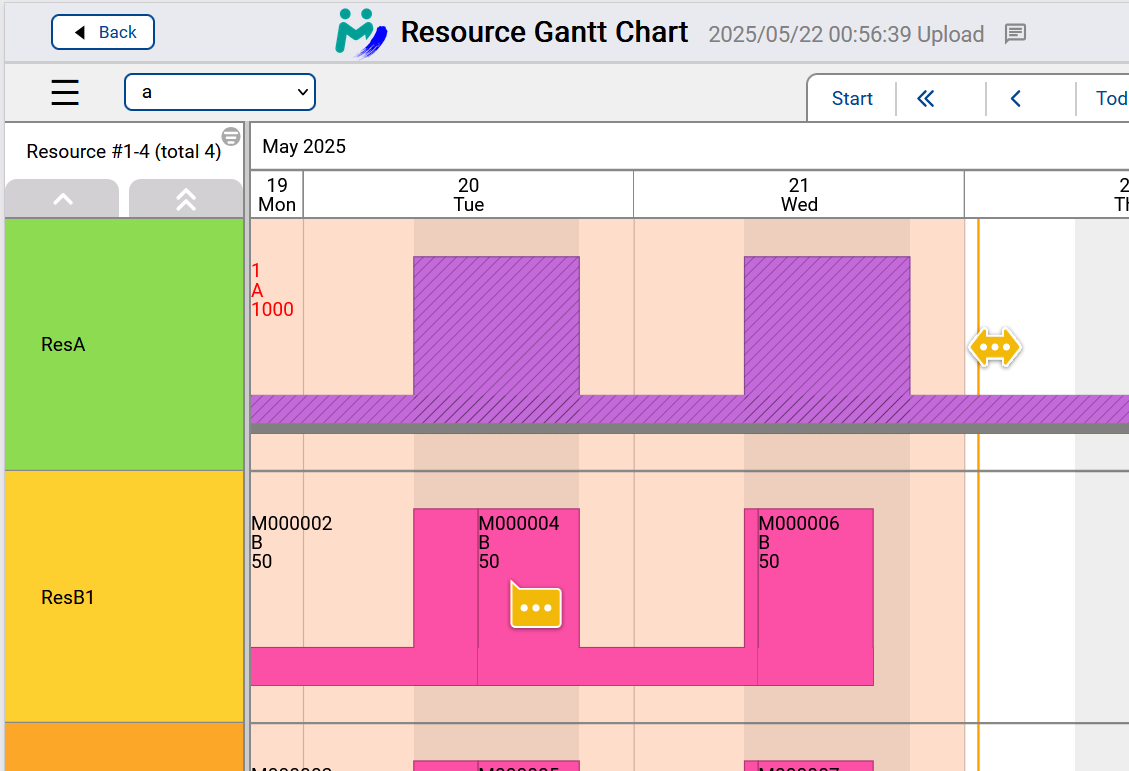
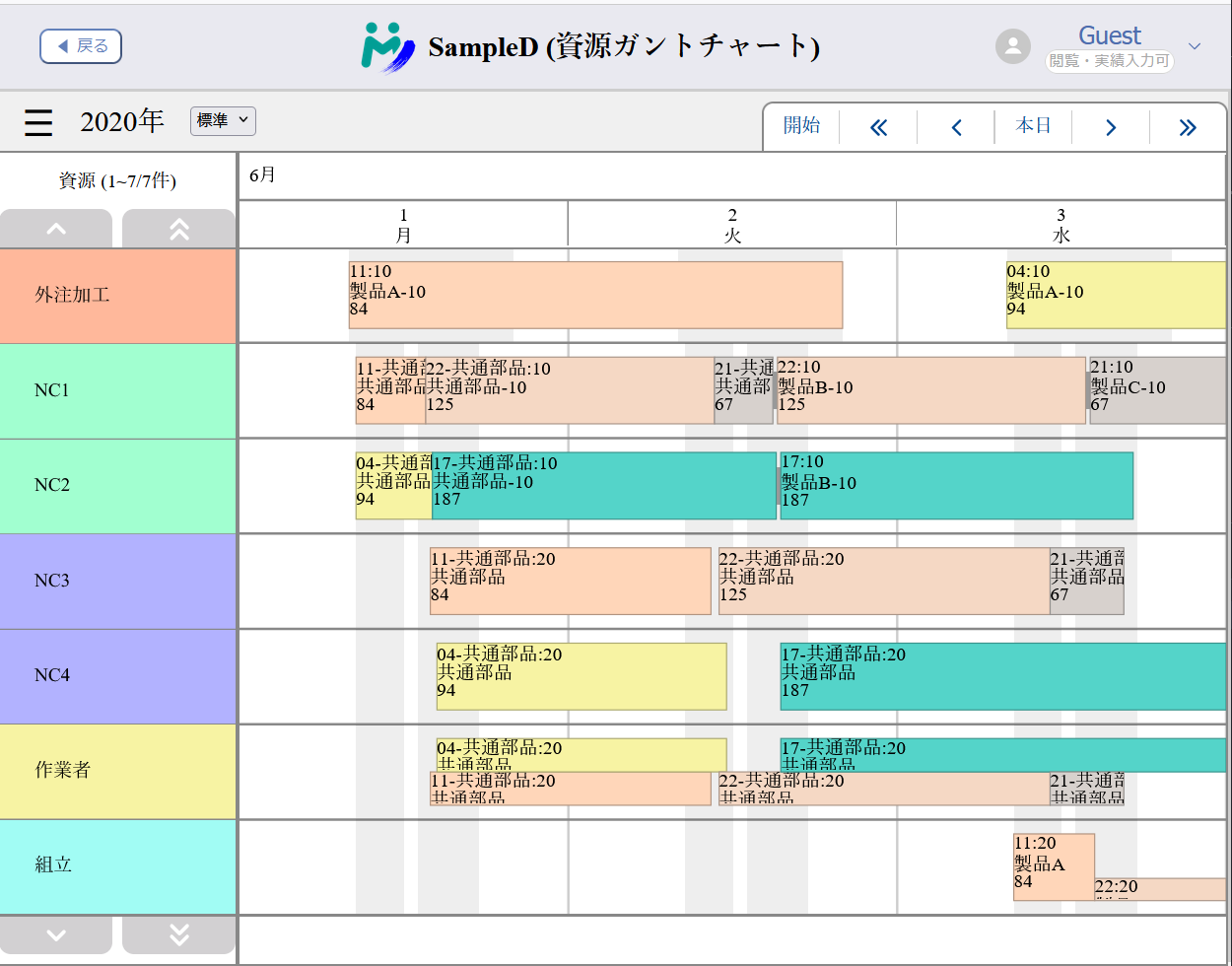
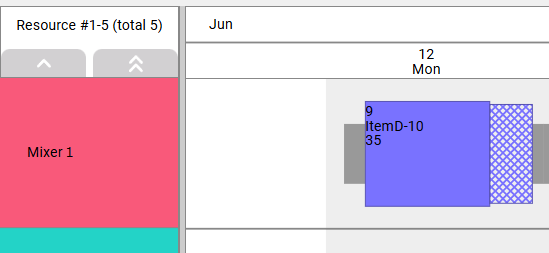
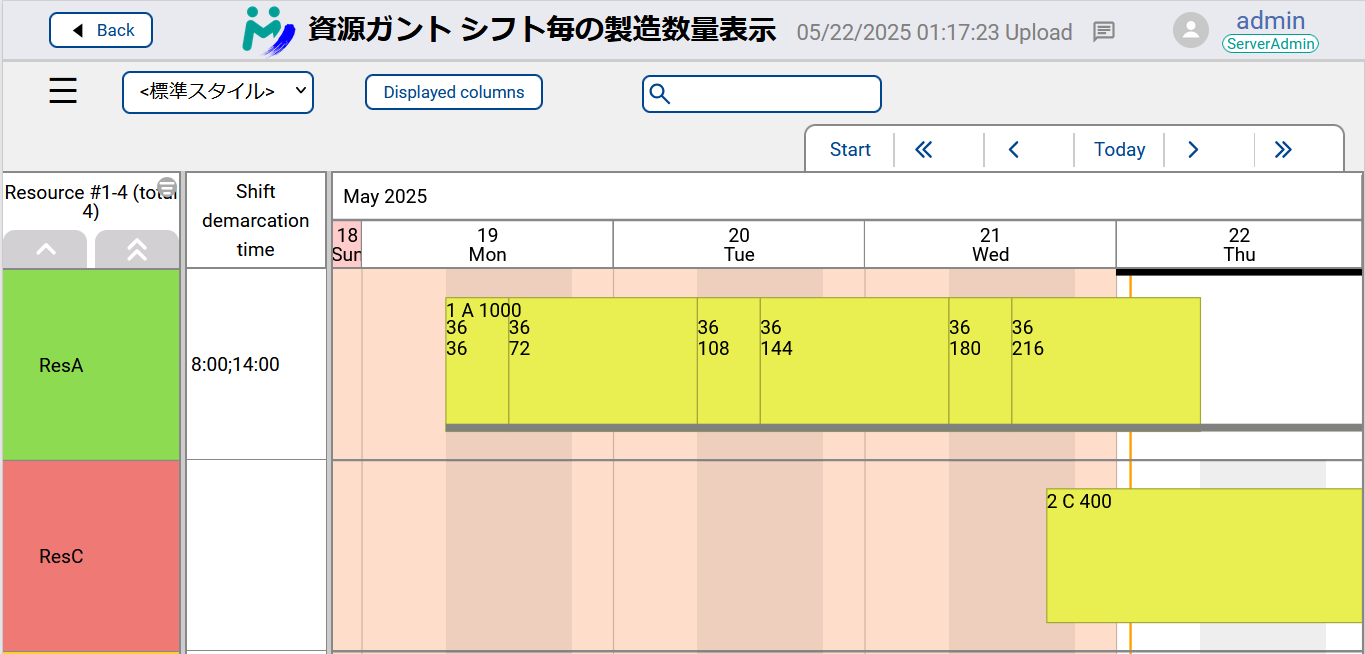 A new variant of Resource Gantt Chart is added where operation bars are split by shifts configured in the Aru file.
Each shift block has two numbers: production quantity in the shift, and cumulative production quantity to the shift.
See
A new variant of Resource Gantt Chart is added where operation bars are split by shifts configured in the Aru file.
Each shift block has two numbers: production quantity in the shift, and cumulative production quantity to the shift.
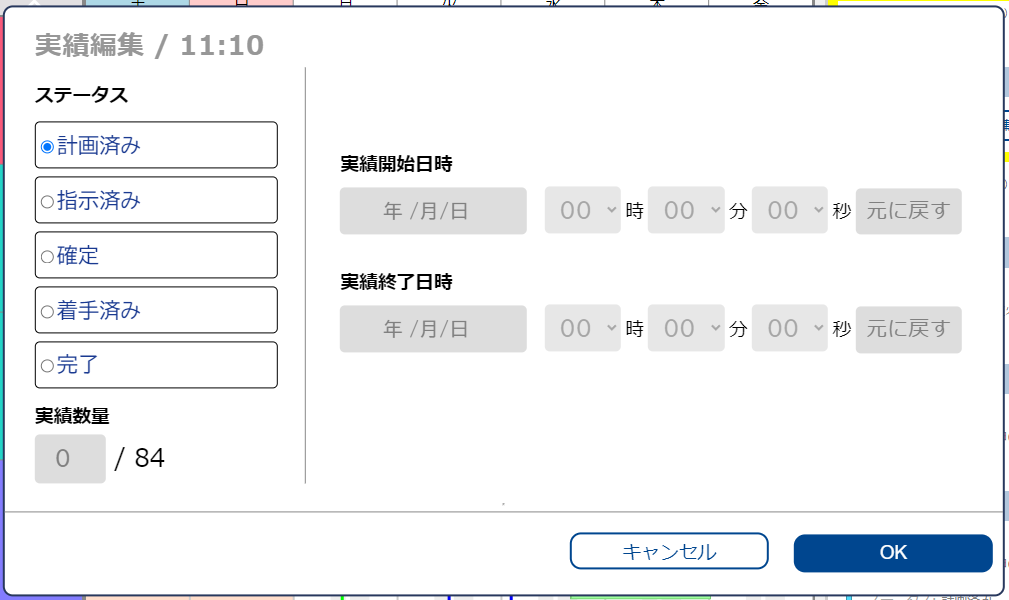
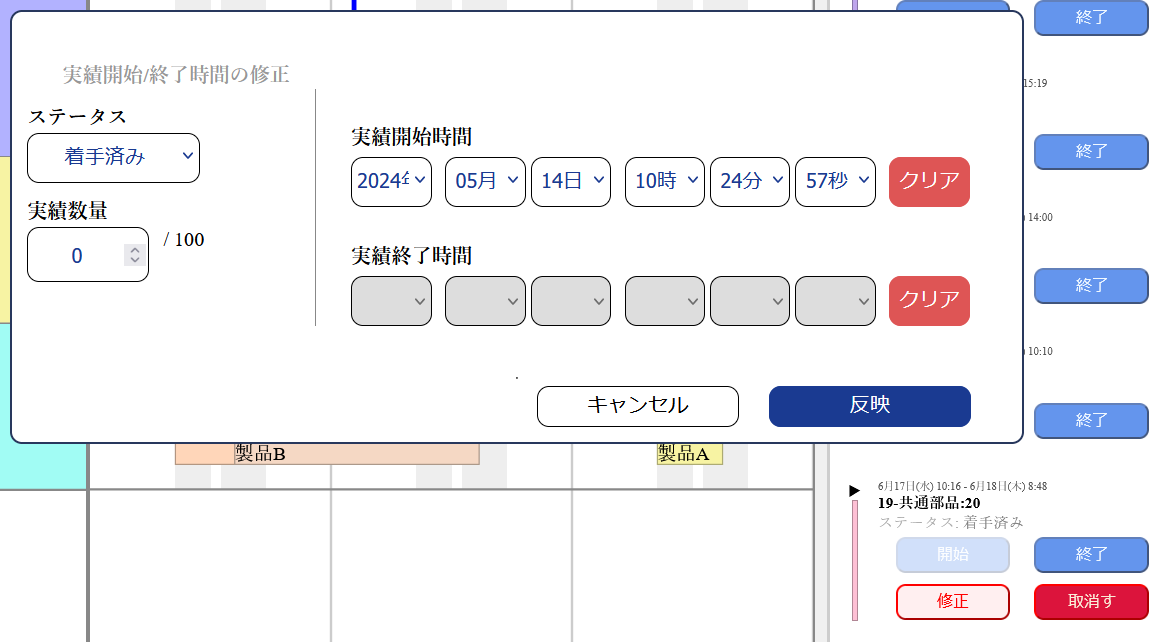
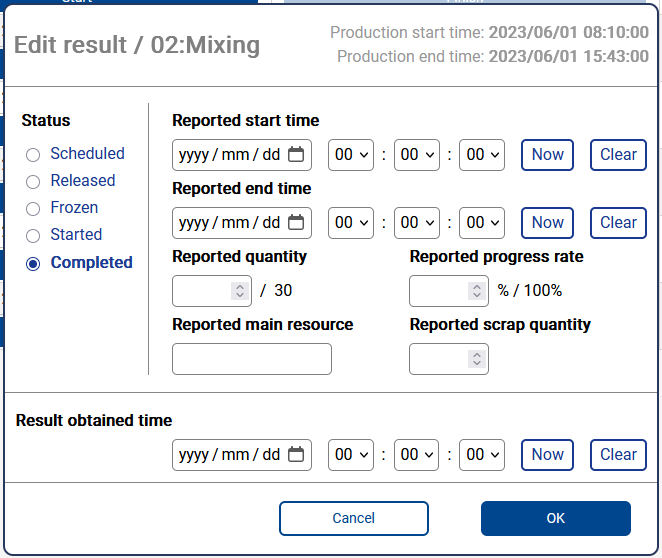
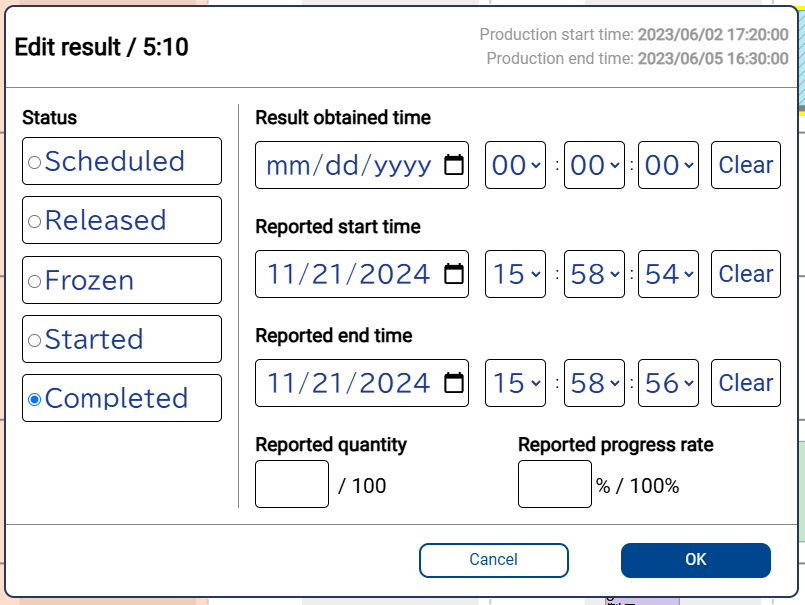
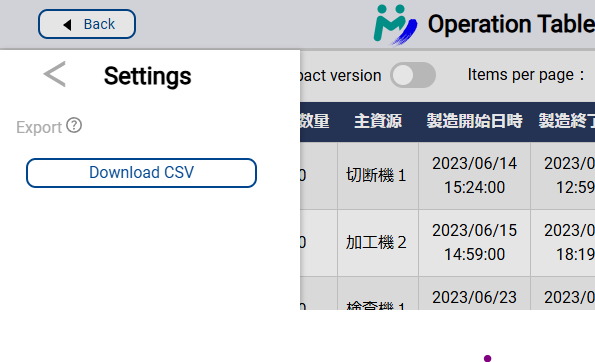
See 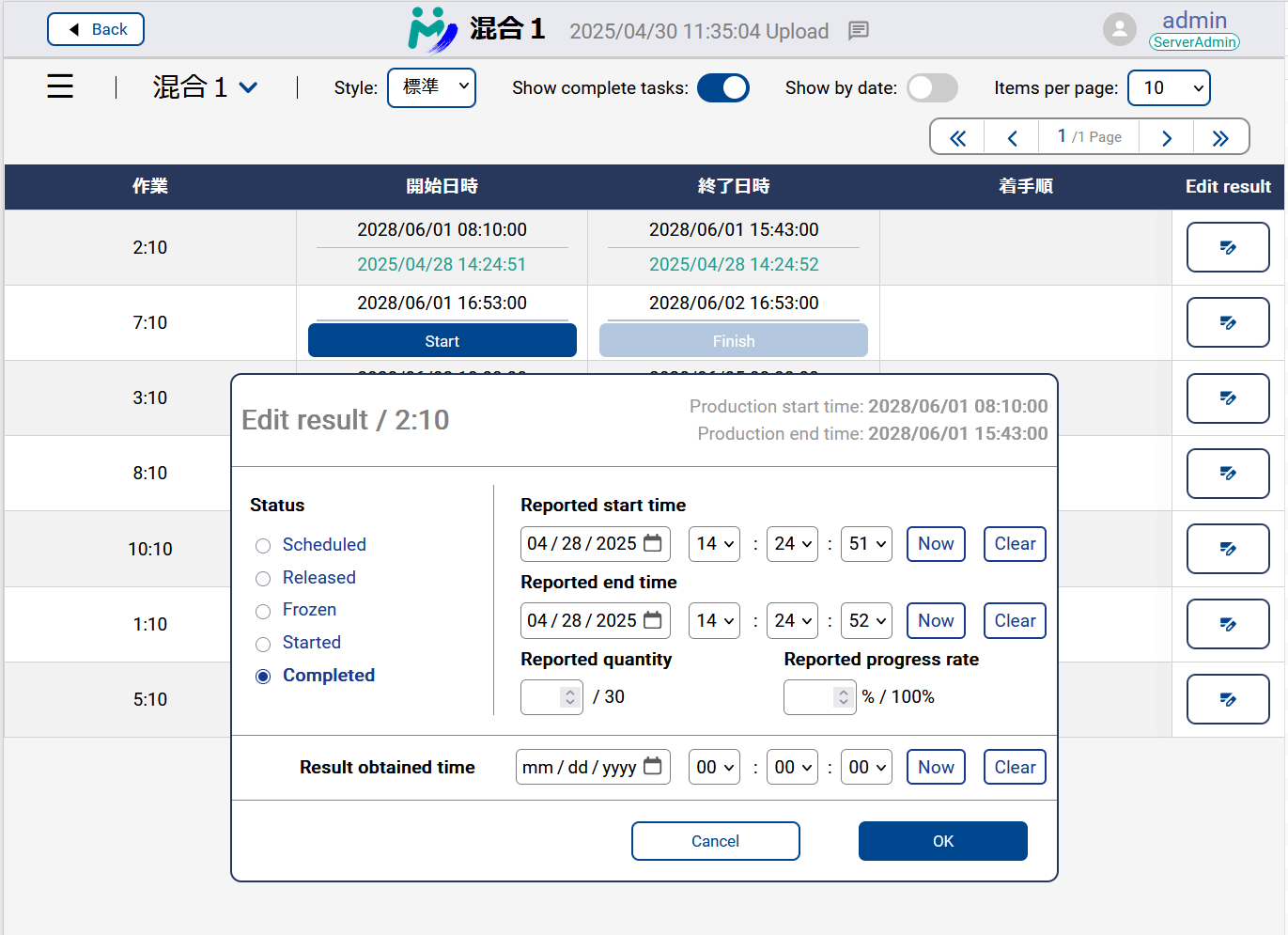 Editing results is now possible on Dispatching View and Operation Table.
Click the buttons on the right-most column to display the edit-results dialog.
Editing results is now possible on Dispatching View and Operation Table.
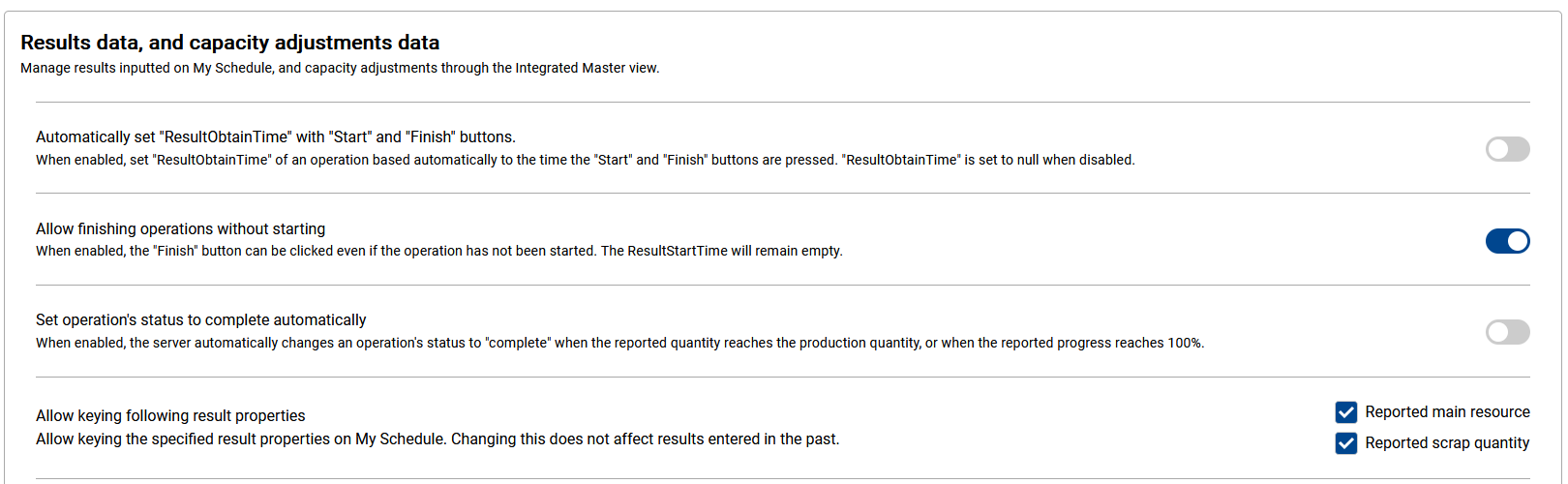
Click the buttons on the right-most column to display the edit-results dialog.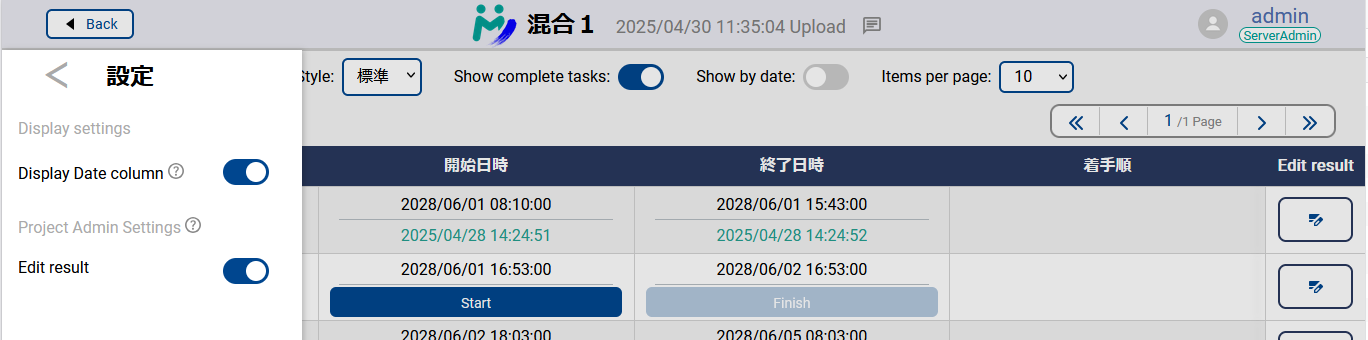 Whether to display the buttons is controlled by the project admins.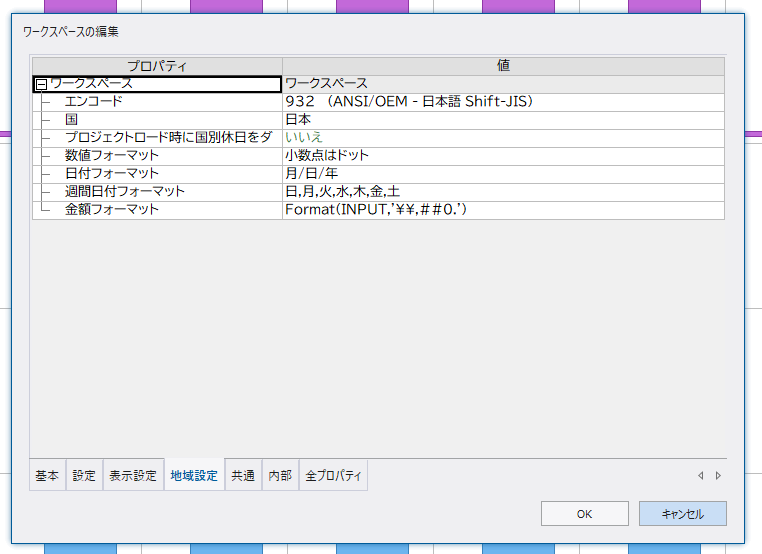
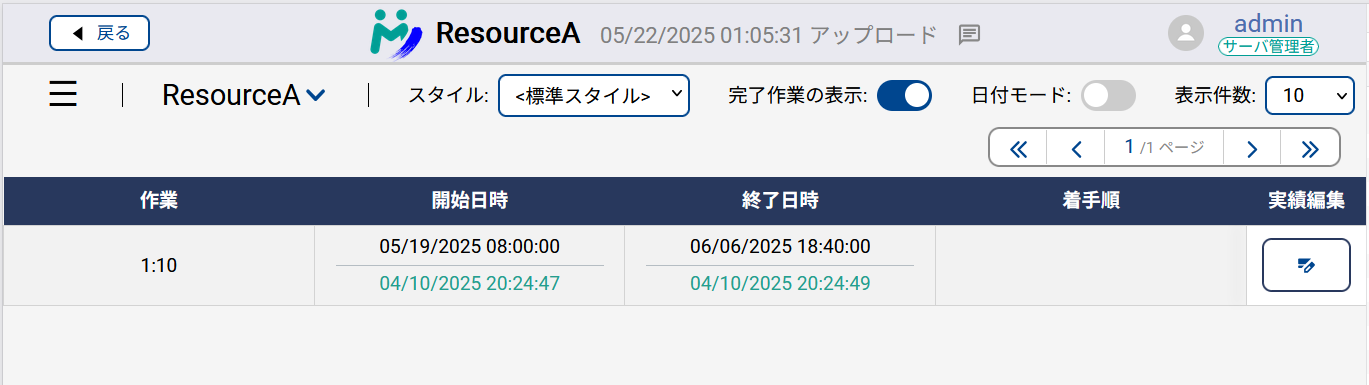 Dates on My Schedule (especially result obtain time, result start time, result end time) are now formatted by Asprova's date format setting.
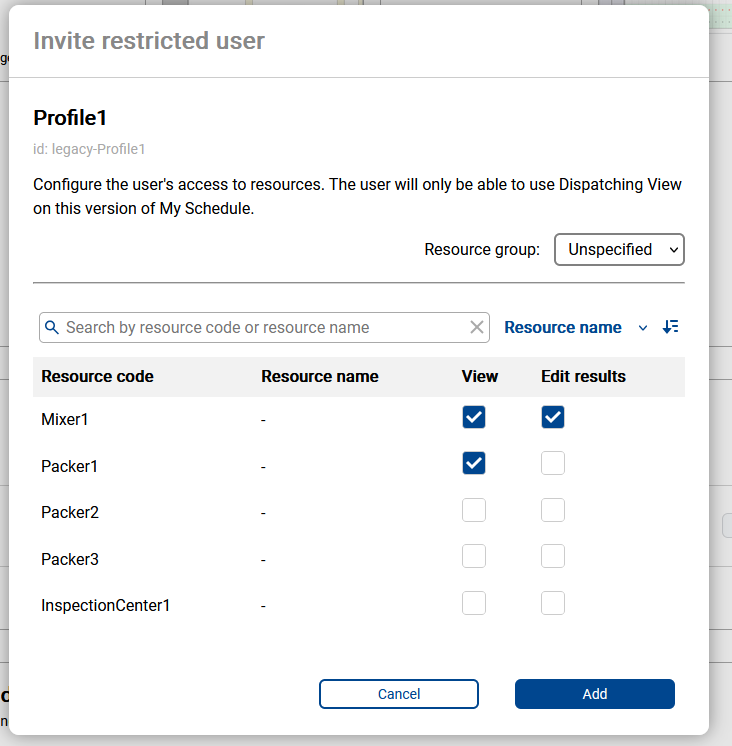 The Restricted Users feature has been added as the first feature to manage the scope of access for each user in My Schedule.
For users set as restricted users, you can select the resources they can access and set the permissions for those resources.
The Restricted Users feature has been added as the first feature to manage the scope of access for each user in My Schedule.
For users set as restricted users, you can select the resources they can access and set the permissions for those resources.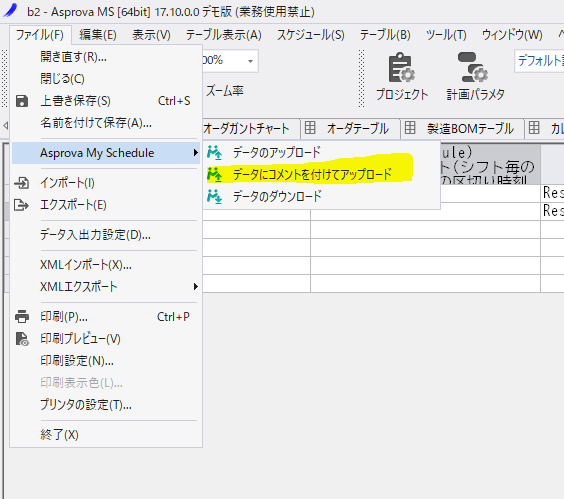 It is now possible to upload from Asprova with comments.
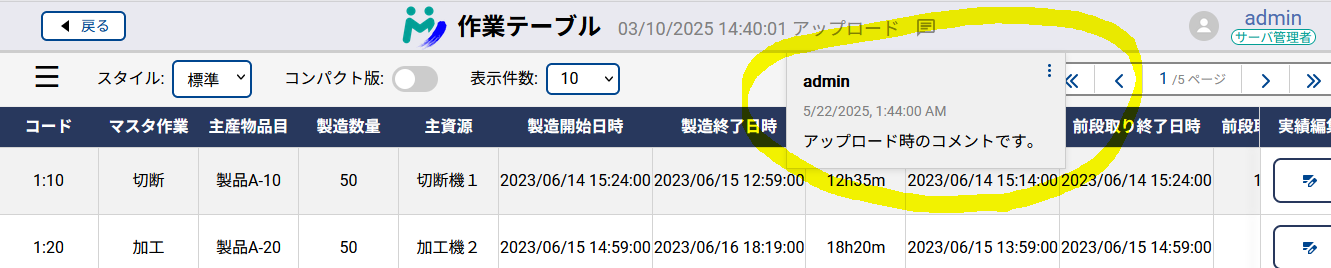 Comments are displayed to My Schedule users in the header.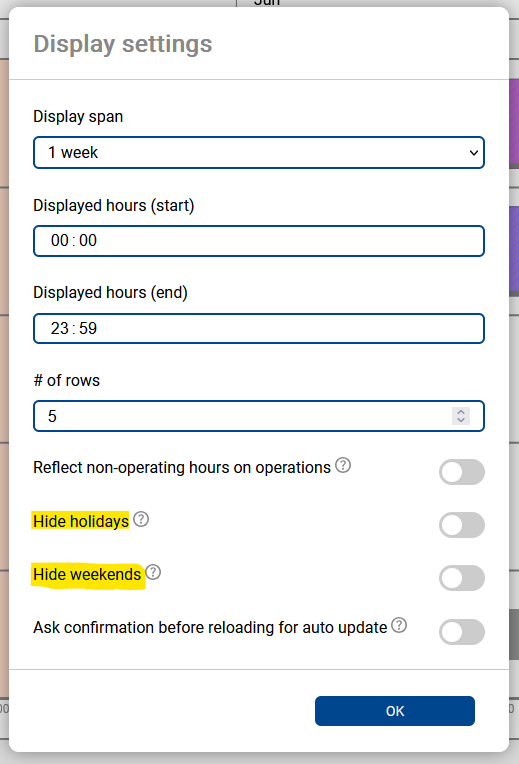
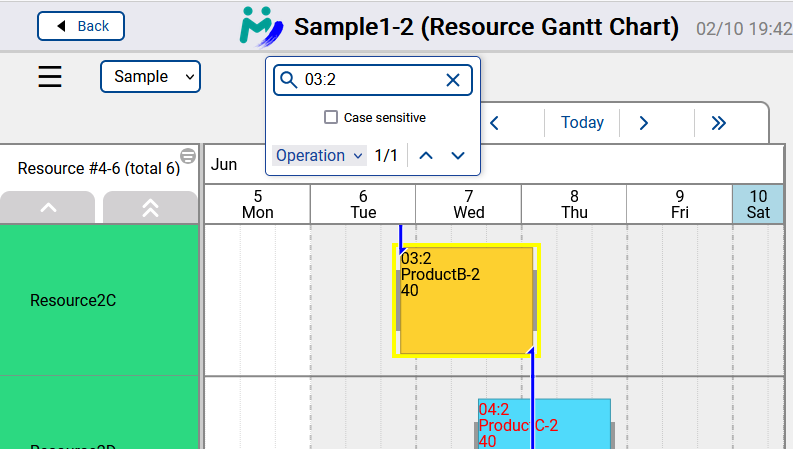

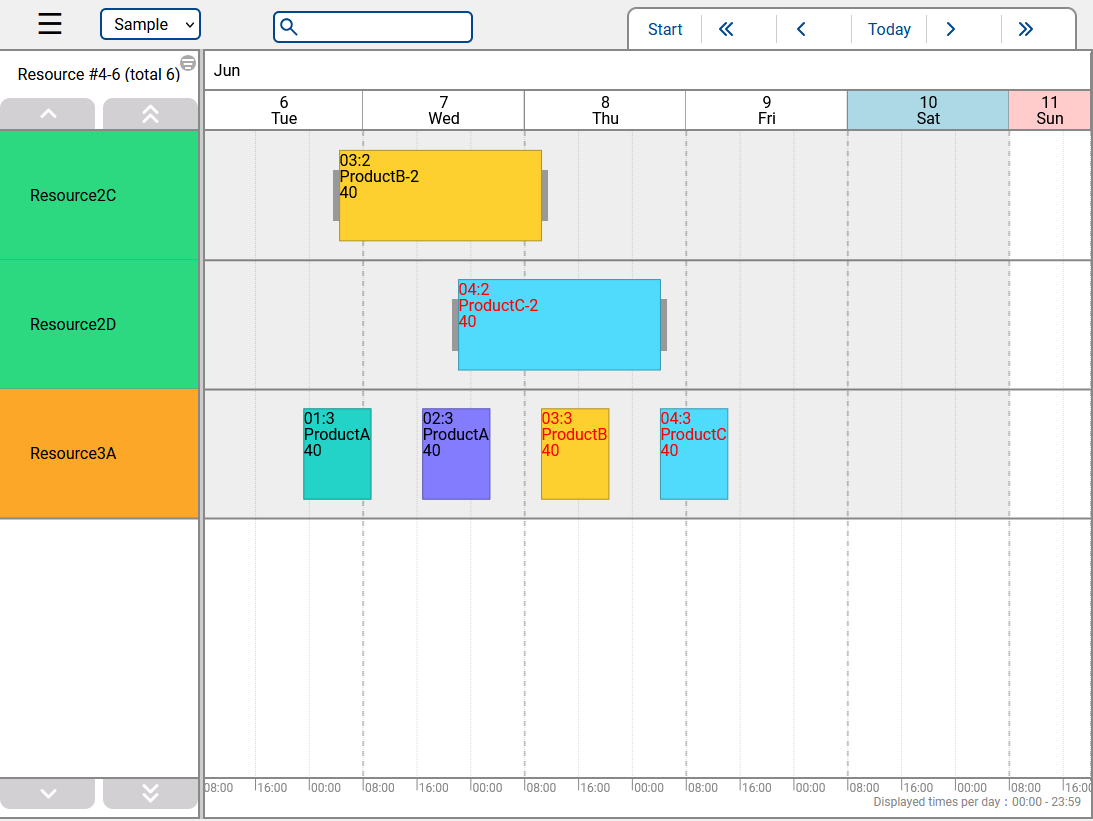
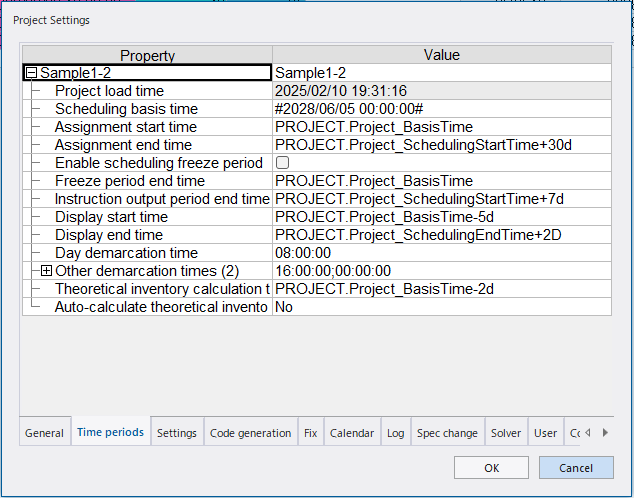
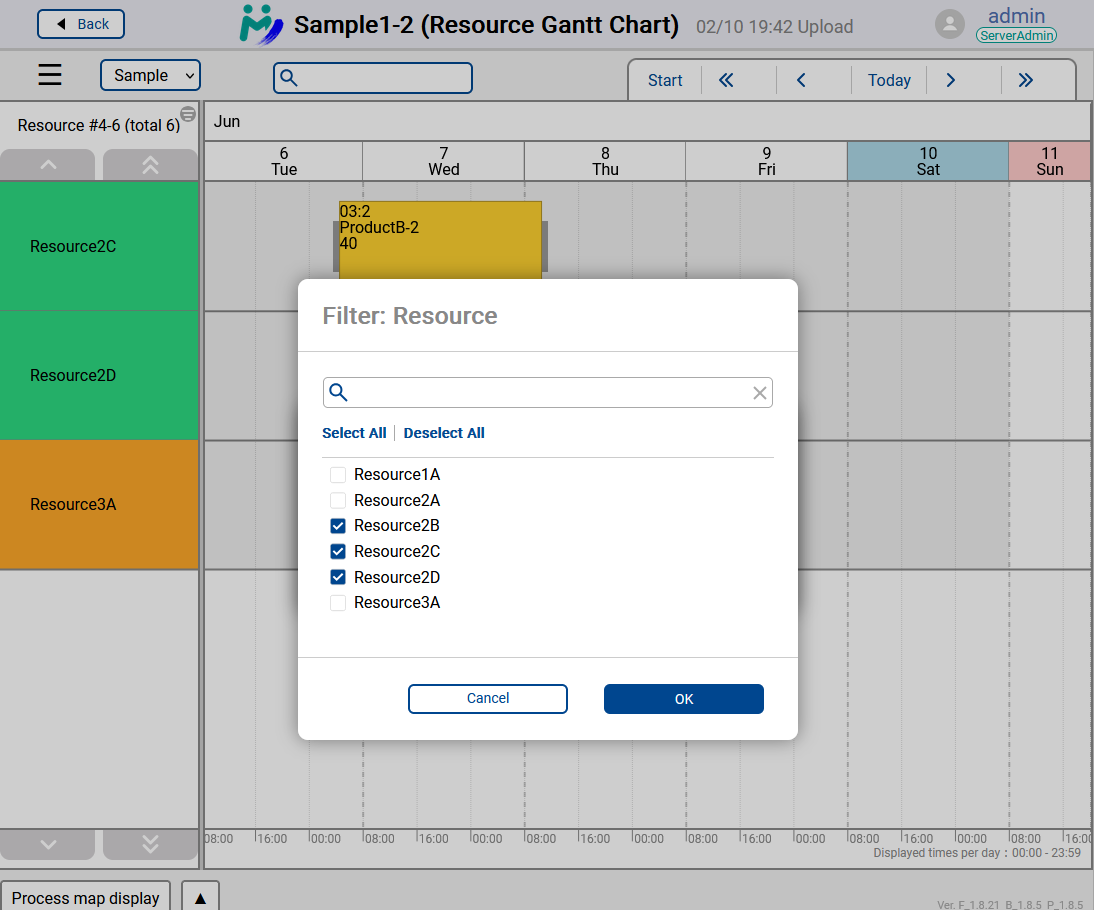
 icon or selecting "Filter" on the menu.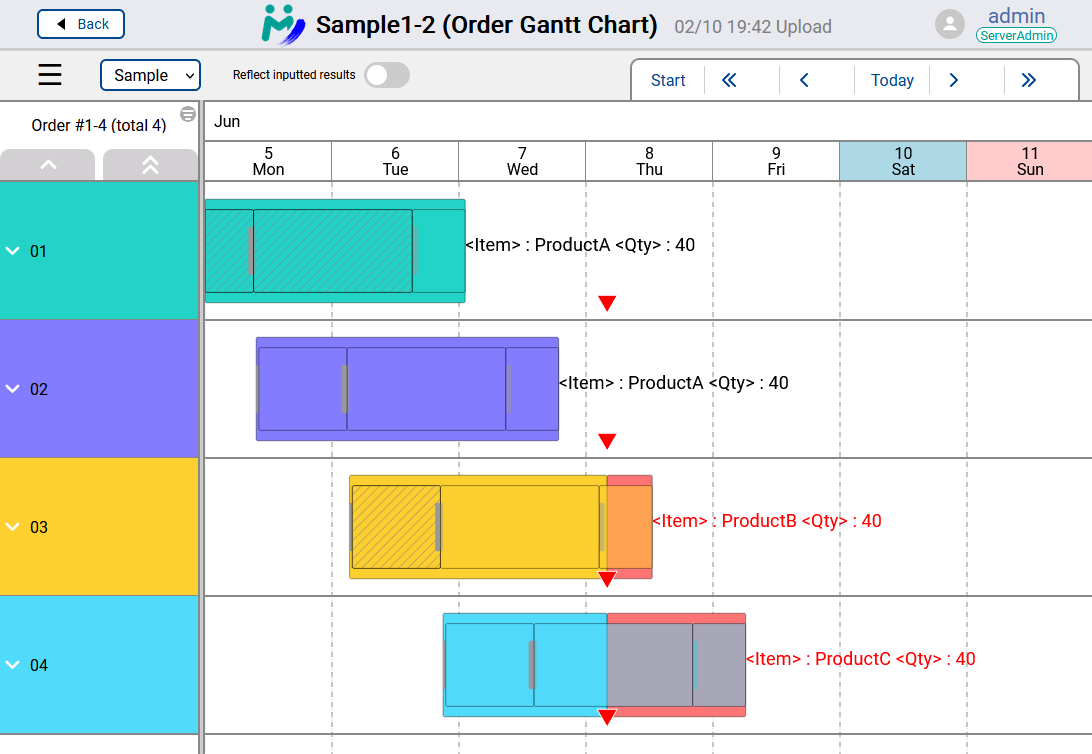
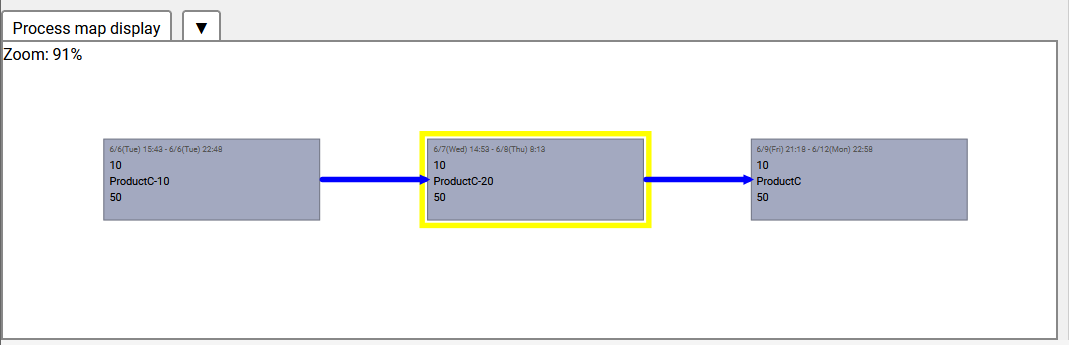 Process Map is a feature that visualizes the connections between processes.
You can access it from the "Process Map Display" at the bottom.
By clicking on a task bar in the Resource Gantt Chart and selecting a task, you can display the series of processes in which that task exists as a graphical map.
Process Map is a feature that visualizes the connections between processes.
You can access it from the "Process Map Display" at the bottom.
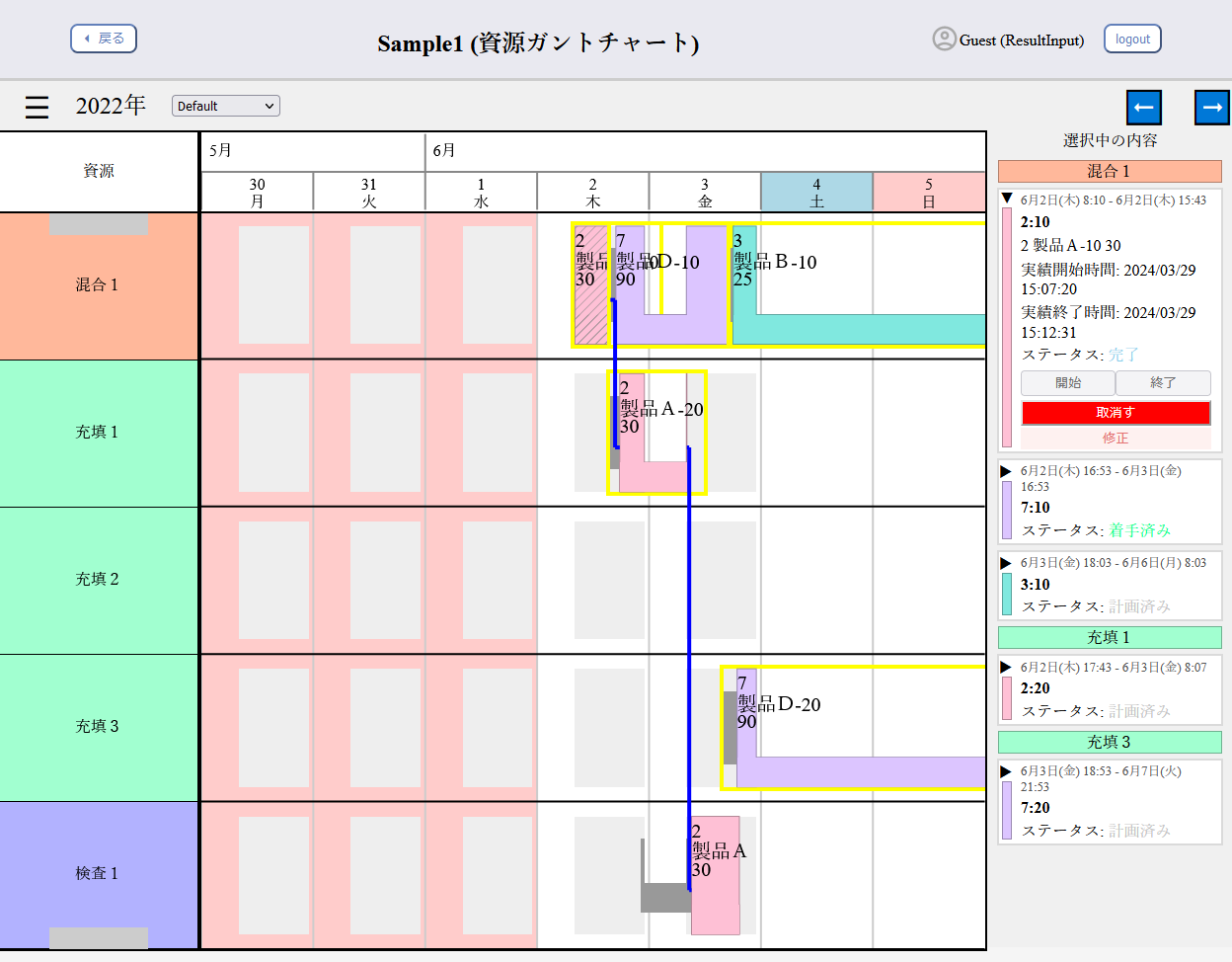
By clicking on a task bar in the Resource Gantt Chart and selecting a task, you can display the series of processes in which that task exists as a graphical map.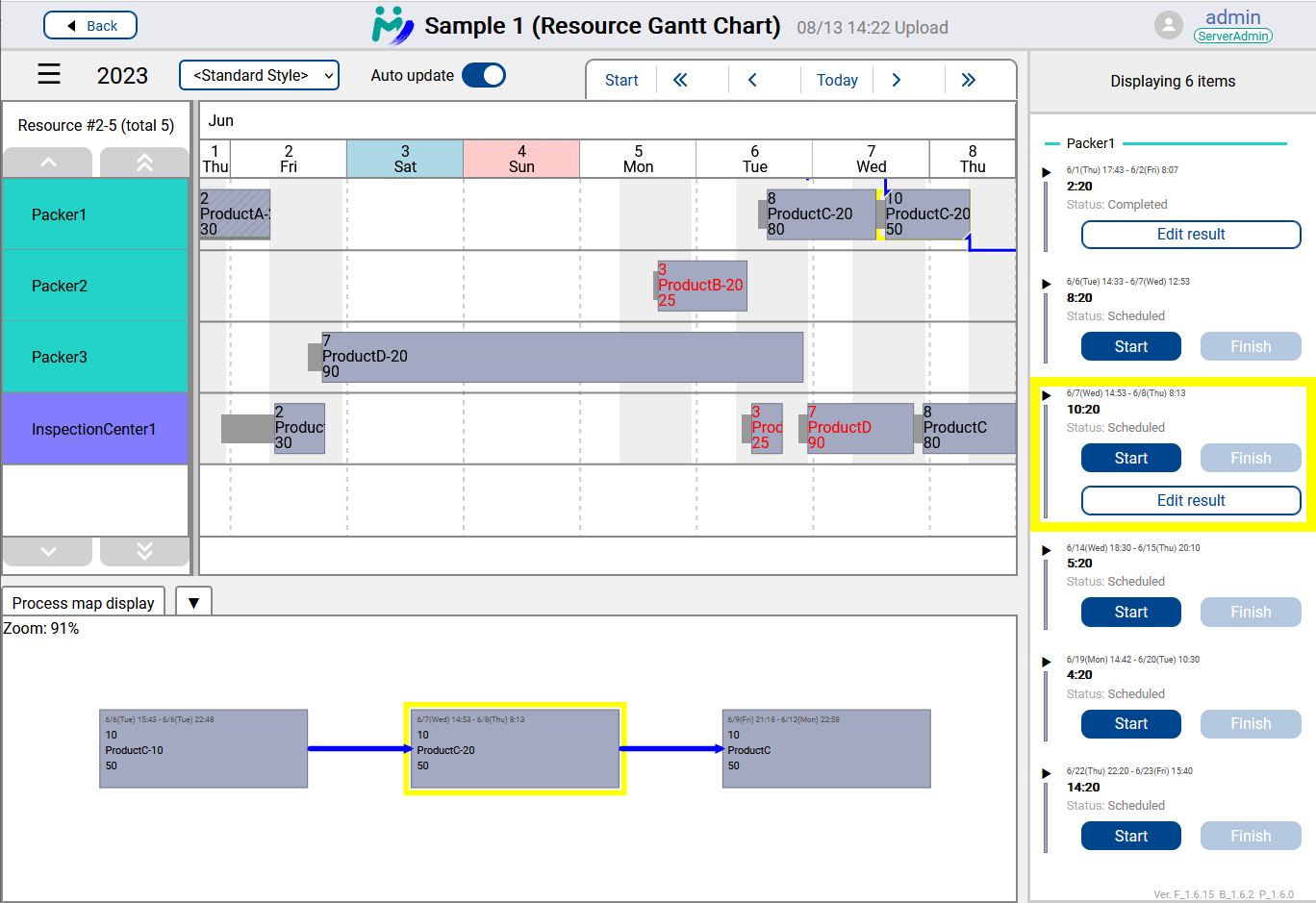 The Gantt Chart section of the Resource Gantt Chart, the timeline display on the right, and the preceding and following process map display are linked. By selecting a task in the preceding and following process map, you can navigate to the corresponding task in the Gantt Chart.
In the image, the yellow frame representing the selected task is visible in the Gantt Chart, timeline display, and preceding and following process map, confirming that the same task is highlighted across all displays.
The Gantt Chart section of the Resource Gantt Chart, the timeline display on the right, and the preceding and following process map display are linked. By selecting a task in the preceding and following process map, you can navigate to the corresponding task in the Gantt Chart.
In the image, the yellow frame representing the selected task is visible in the Gantt Chart, timeline display, and preceding and following process map, confirming that the same task is highlighted across all displays.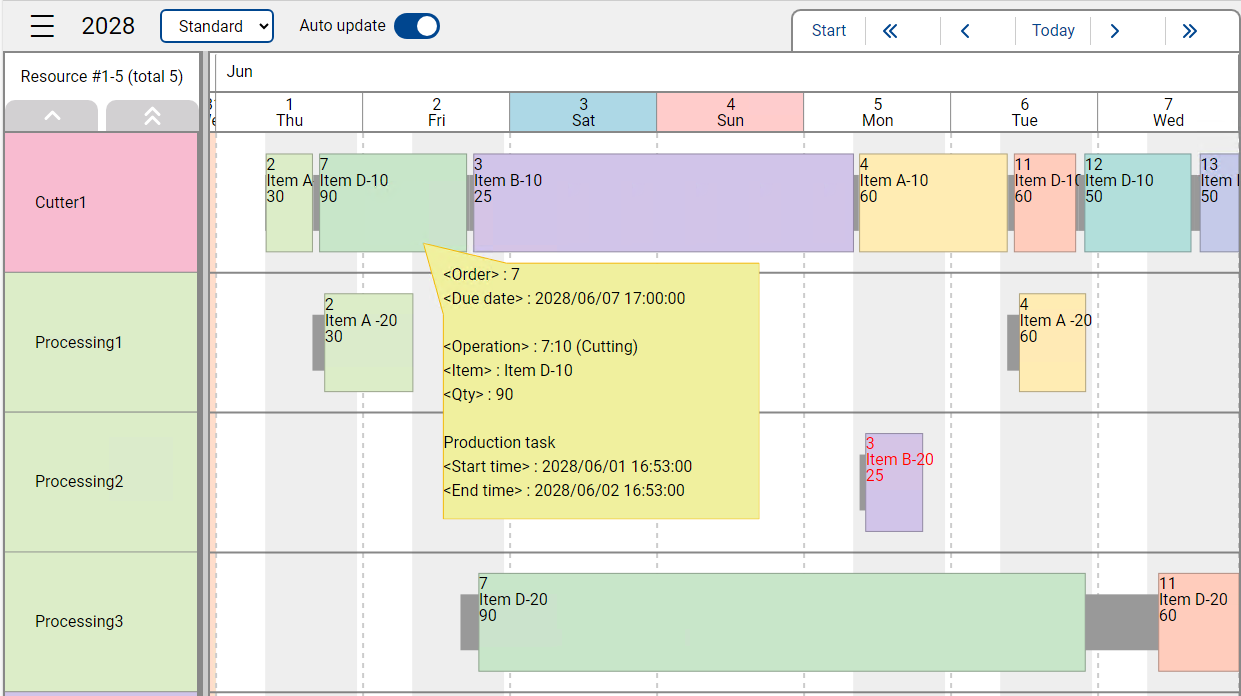 Resource Gantt Chart now supports displaying labels defined in the corresponding style in Asprova.
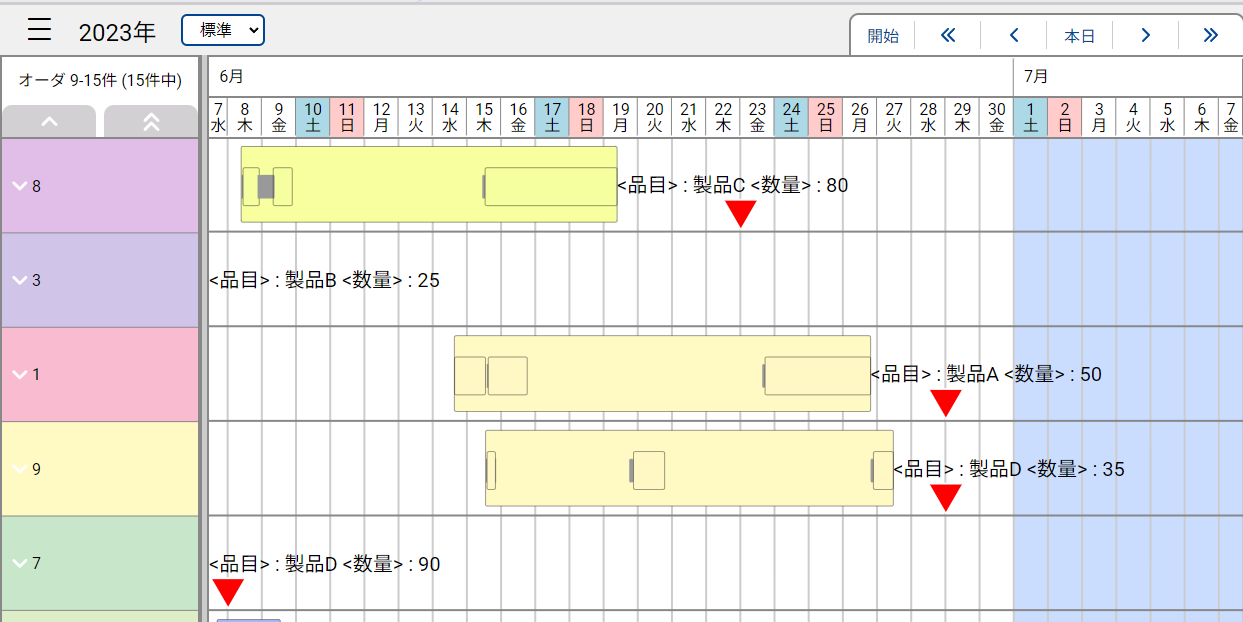
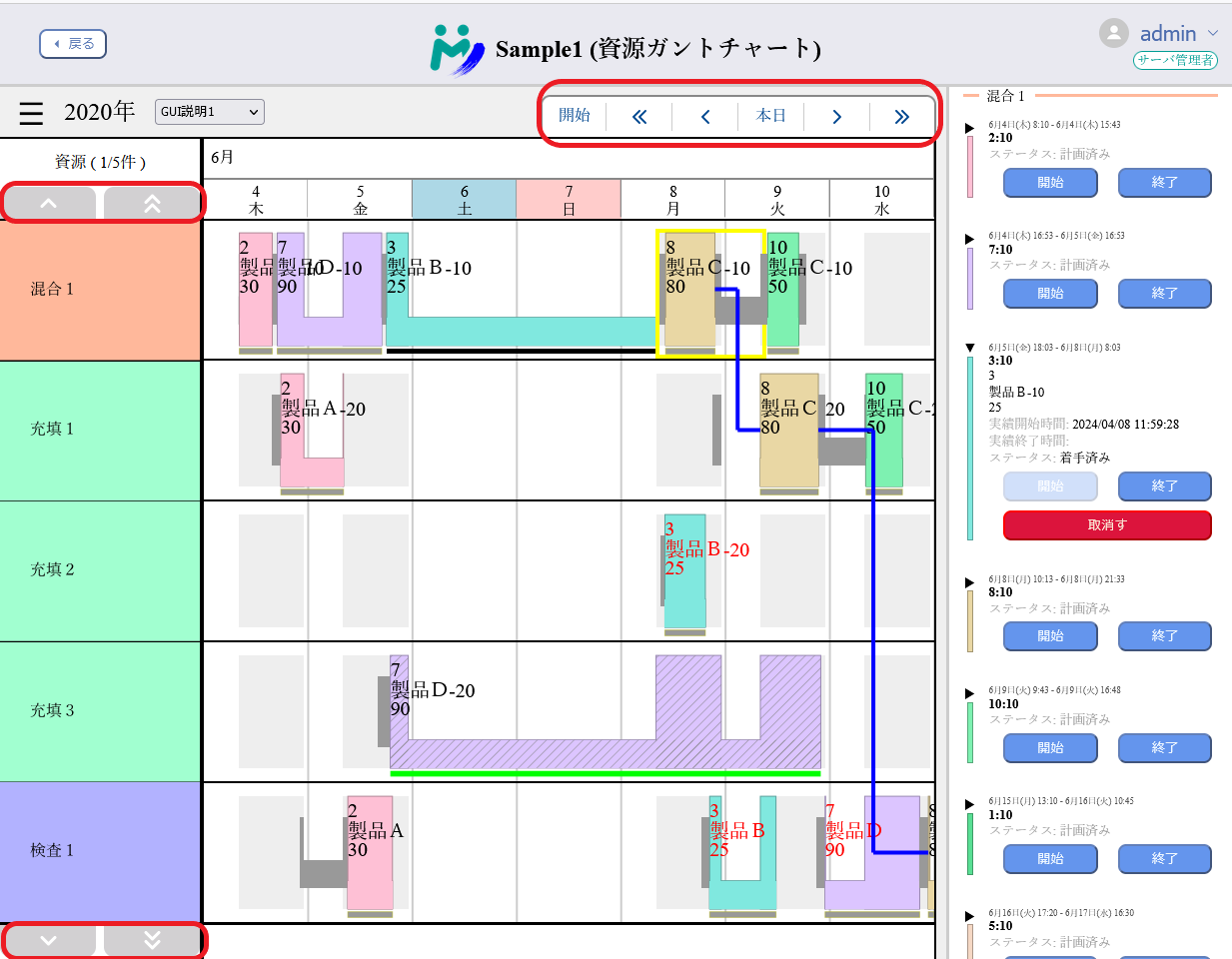
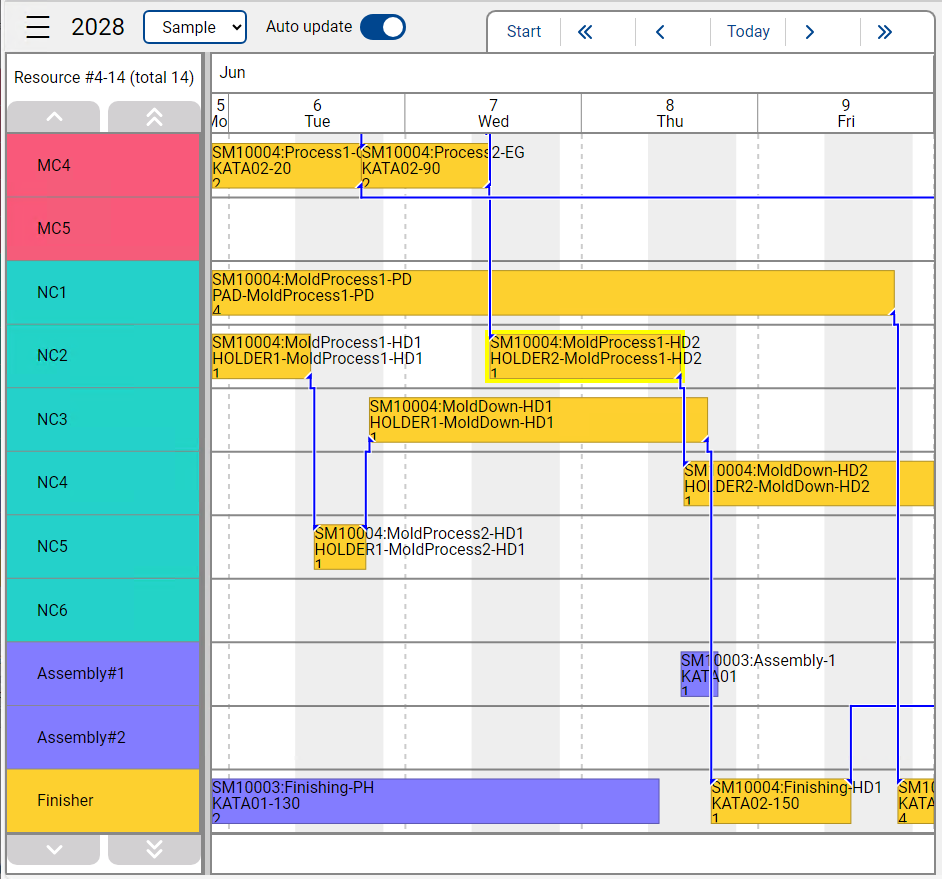 Connection lines on Resource Gantt Chart now has a new look.
Connection lines are drawn by stacking them vertically, and their endpoints now have triangular markers,
which will give users more intuition about the lines' relation with other entities.
Connection lines on Resource Gantt Chart now has a new look.
Connection lines are drawn by stacking them vertically, and their endpoints now have triangular markers,
which will give users more intuition about the lines' relation with other entities.